Screenshots
See Draglass in action with these screenshots from the web version running the Demo Vault.
Main Interface
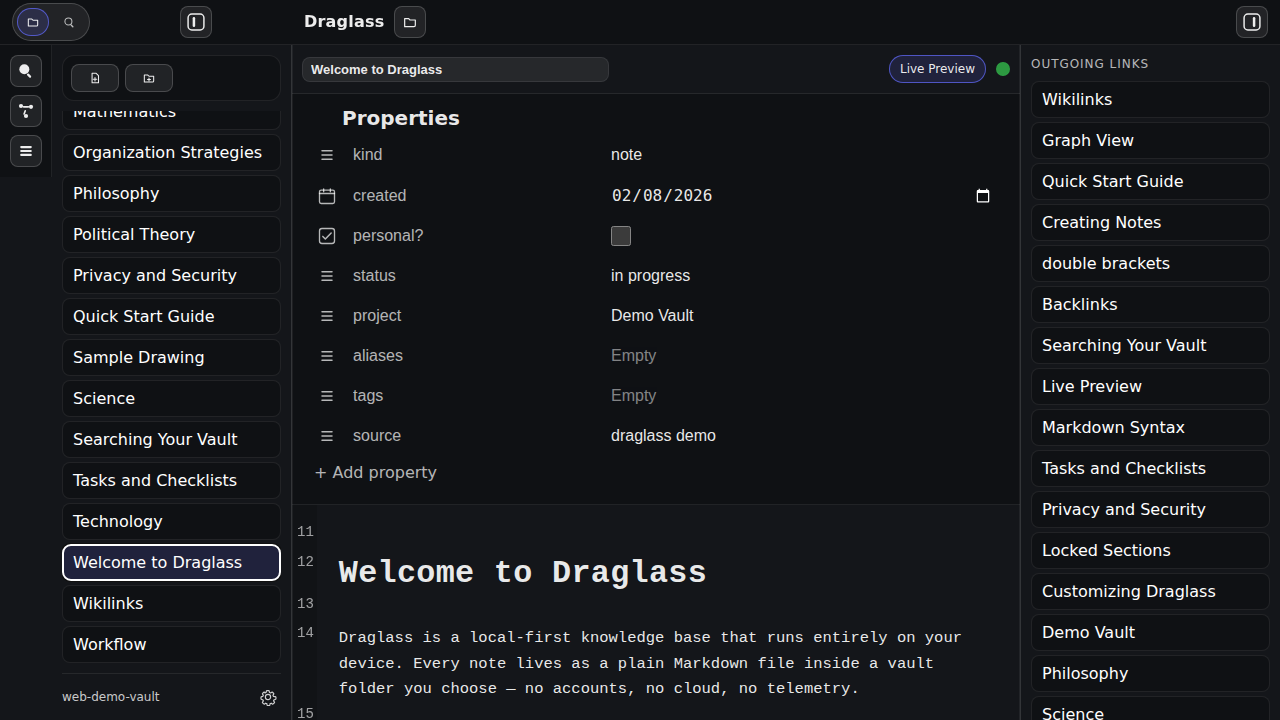
The Draglass interface with the editor in Live Preview mode, showing a note from the Demo Vault with all sidebars visible.
Features shown:
- Left sidebar with file tree showing 28 demo notes
- CodeMirror editor with Live Preview rendering
- Note title with inline rename capability
- Outgoing links panel showing all wikilinks in the current note
- Tasks panel with 13 open checkboxes from across the vault
- Backlinks panel showing 8 notes that link to this one
- Dark theme with clean, distraction-free interface
Graph View
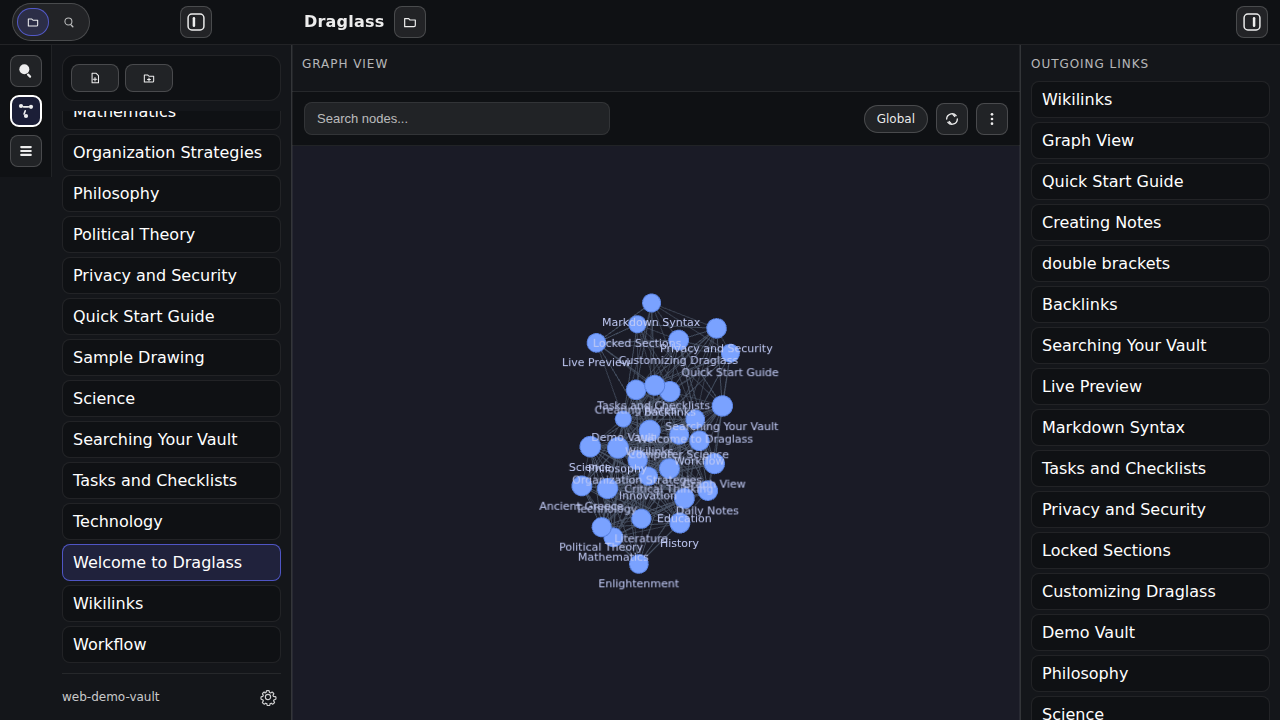
Interactive force-directed network visualization of the entire Demo Vault showing how notes connect through wikilinks.
Features shown:
- Global mode showing all 28 notes as nodes
- Force-directed layout with automatic positioning
- Clear visualization of note connections and clusters
- Search bar to filter nodes
- Global/Local mode toggle
- Settings button for customizing appearance and physics
- Philosophy, Science, and Technology notes forming distinct clusters
- Hub notes like “Welcome to Draglass” with many connections
Quick Switcher
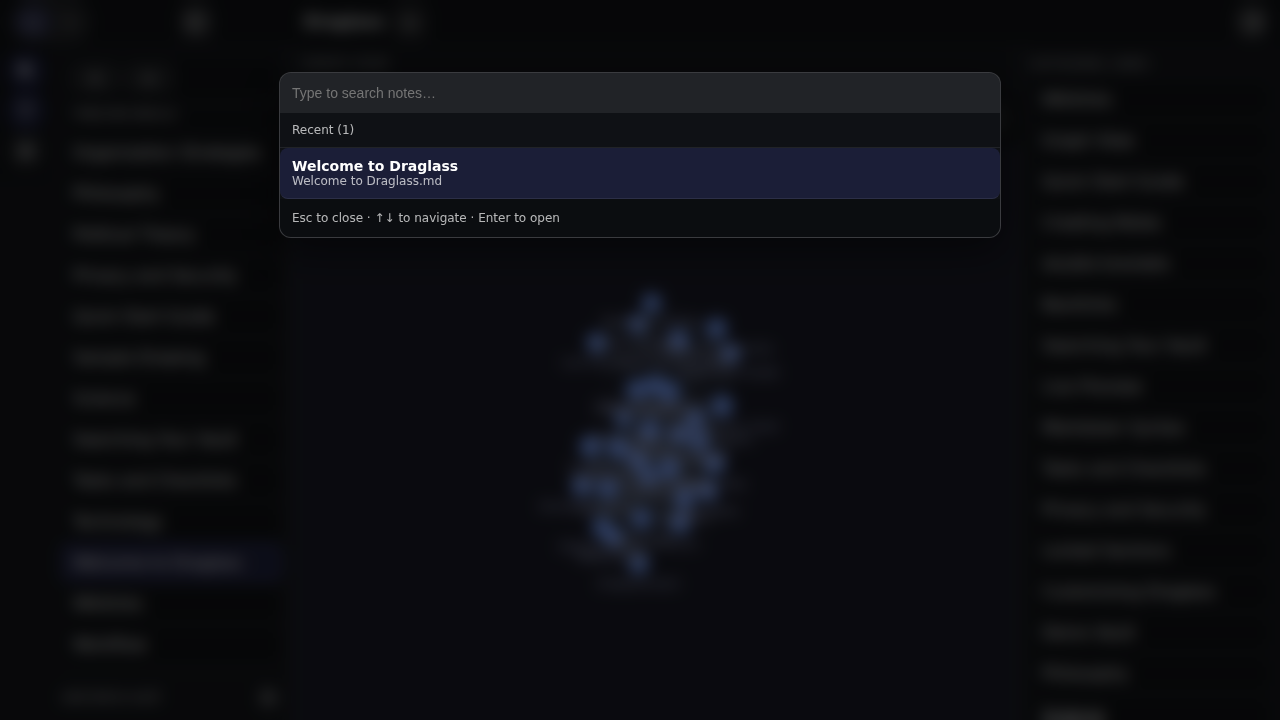
Fuzzy search interface for instantly jumping to any note by name.
Features shown:
- Modal overlay with search field
- Recent notes section showing last opened note
- “Welcome to Draglass” note displayed with full path
- Keyboard shortcuts displayed at bottom (Esc to close, arrows to navigate, Enter to open)
- Clean, focused interface for rapid navigation
- Graph View visible in background showing context
Left Sidebar - Search View
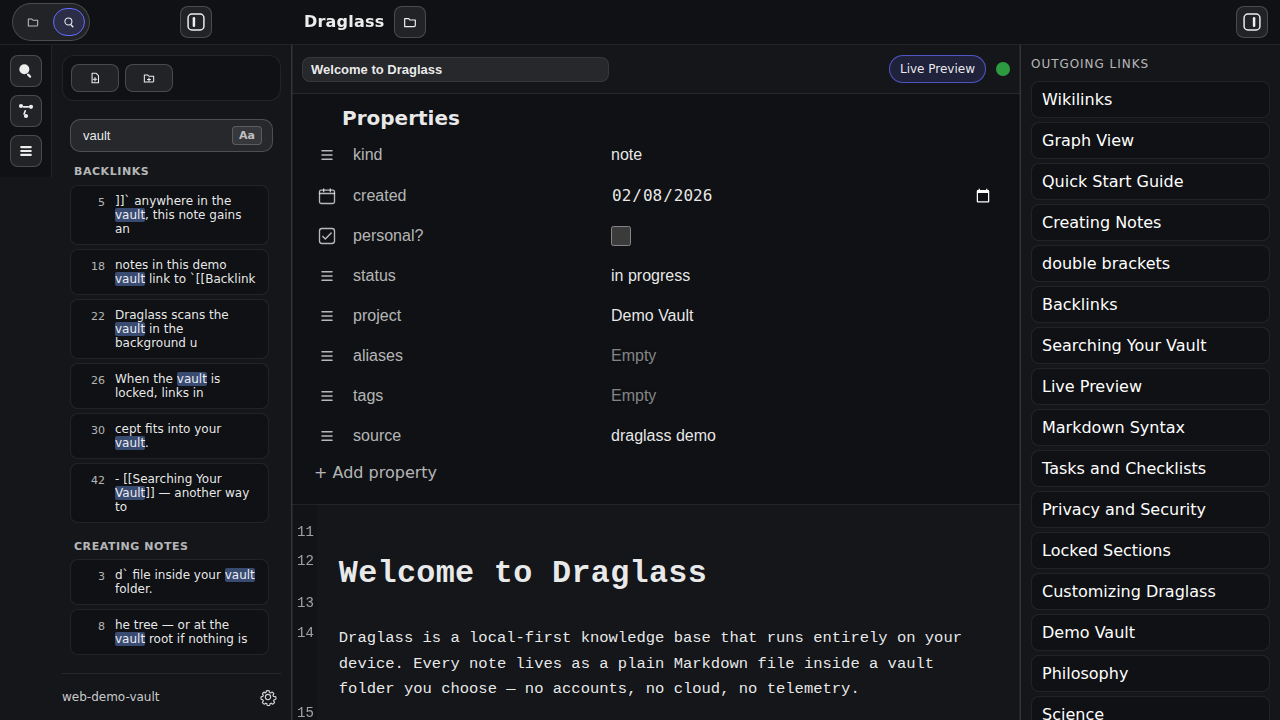
Full-text search interface for finding content across all notes in the vault.
Features shown:
- Search input field at top of left sidebar
- Case-sensitive toggle button (Aa)
- Search results grouped by category (Backlinks, Creating Notes sections visible)
- Each result shows line number and context snippet
- Note file names with match locations
- Results update as you type
- Highlighted search terms in results
Settings Panel
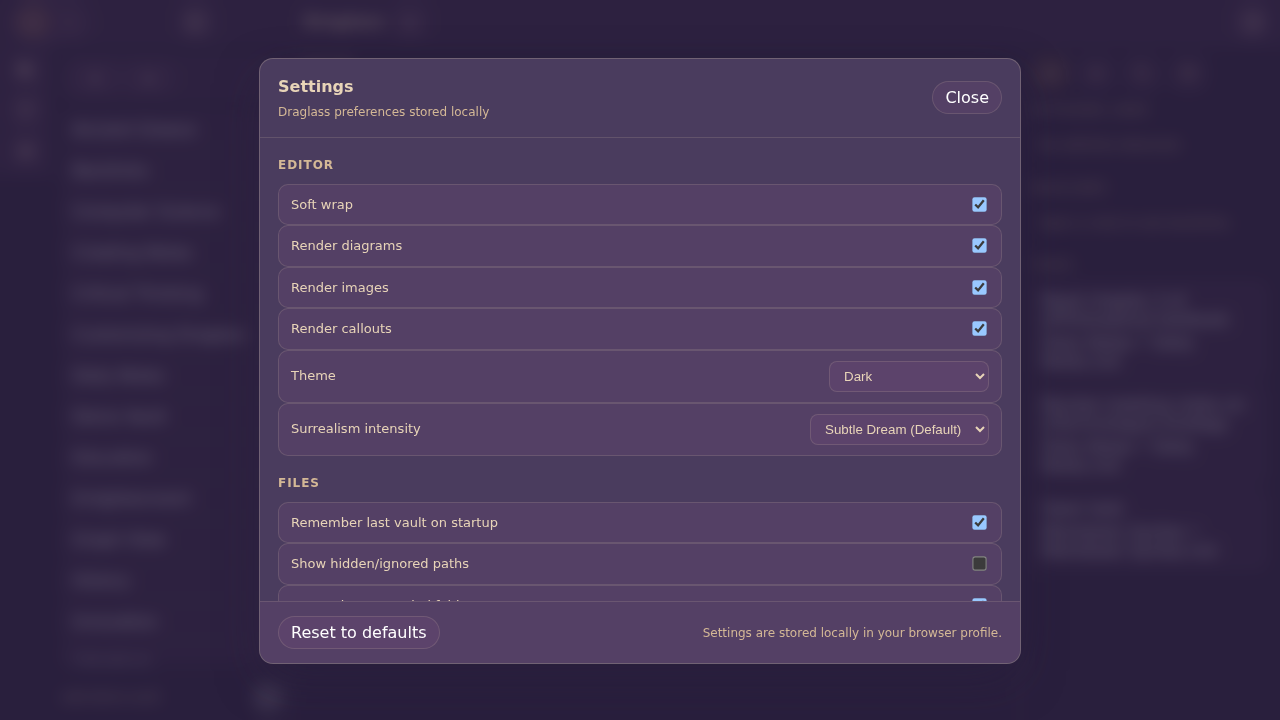
Configuration dialog for customizing Draglass behavior and appearance.
Features shown:
- Modal overlay with organized settings sections
- Editor section: Soft wrap, render diagrams, render images, render callouts toggles
- Theme dropdown: Dark mode selected
- Surrealism intensity dropdown: Dali-inspired style controls (Off/Subtle/Full)
- Files section: Remember last vault, show hidden paths, remember expanded folders
- Autosave settings (visible when scrolling)
- Reset to defaults button
- Settings stored locally in browser profile
- Close button in top-right corner
Command Palette
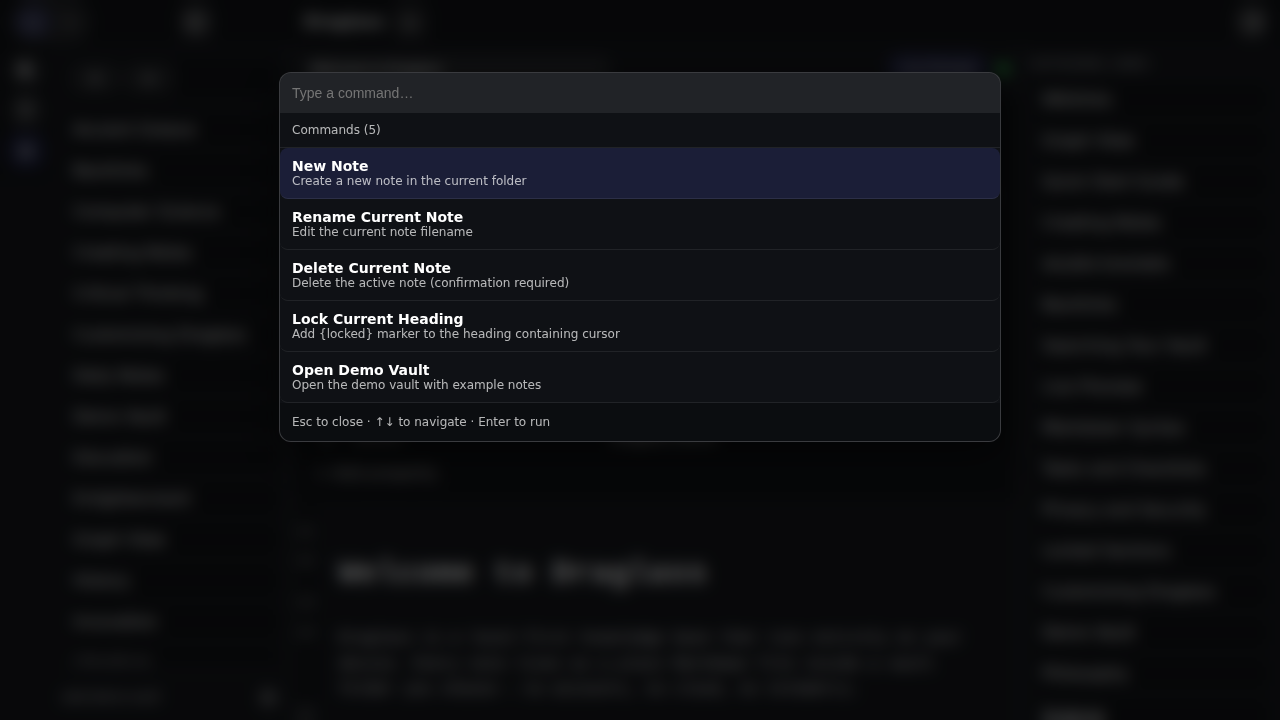
Searchable command interface for quick access to all app actions.
Features shown:
- Modal overlay with command search field
- List of available commands with descriptions:
- New Note - Create a new note in the current folder
- Rename Current Note - Edit the current note filename
- Delete Current Note - Delete the active note (confirmation required)
- Lock Current Heading - Add {locked} marker to heading
- Open Demo Vault - Open the demo vault with example notes
- Keyboard navigation hints at bottom (Esc to close, arrows to navigate, Enter to run)
- Currently showing 5 available commands
- Fuzzy search filtering (type to narrow results)
Source Mode
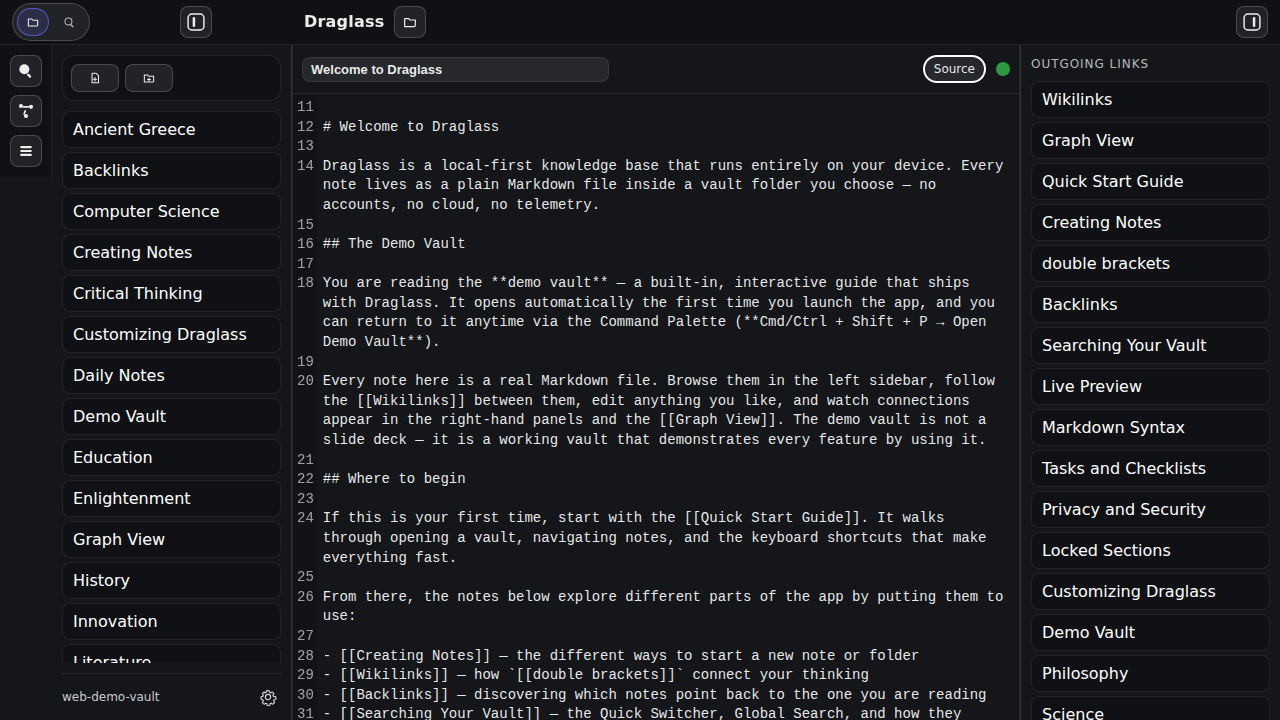
Raw Markdown editing view showing all formatting syntax.
Features shown:
- Toggle between Live Preview and Source mode via button in title bar
- All Markdown syntax visible:
#for headings,**bold**,[[wikilinks]] - Syntax highlighting for different Markdown elements
- Line numbers on the left
- Full editor capabilities maintained
- Useful for editing complex structures or troubleshooting formatting
- Same file content as Live Preview, just different rendering
- File list shows all notes in alphabetical order
Workflow Note (Mermaid + Callout)
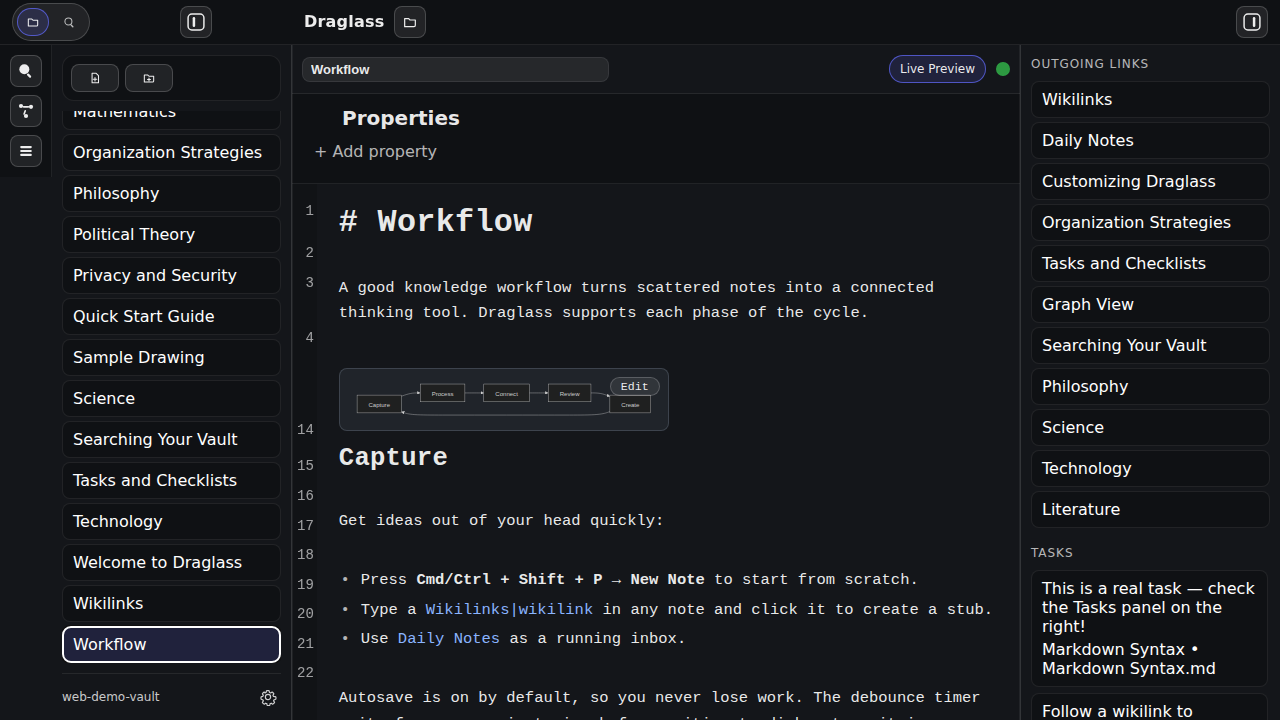
Live Preview rendering of a workflow note with a Mermaid diagram and callout block.
Features shown:
- Mermaid diagram rendered inline
- Callout block with icon and accent color
- Wikilinks connected across the note
- Live Preview formatting with inline emphasis
- Sidebars visible for context
Tasks Panel Focus
Task list aggregation alongside an editable checklist note.
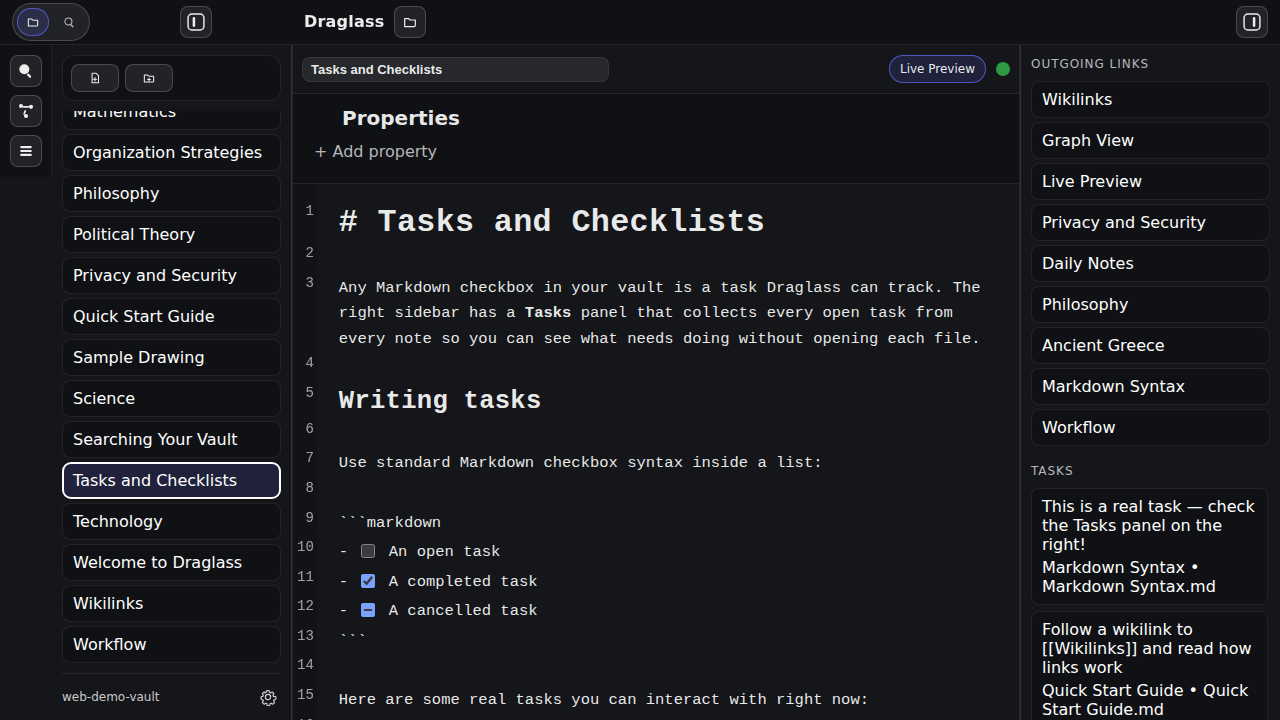
Features shown:
- Tasks panel listing open items from the vault
- Clickable checkboxes in Live Preview mode
- Right sidebar tabs with Tasks selected
- Editor showing checkbox syntax and live toggles
- Left sidebar file tree for navigation
Excalidraw Drawing
Sample Excalidraw canvas embedded directly inside a note.
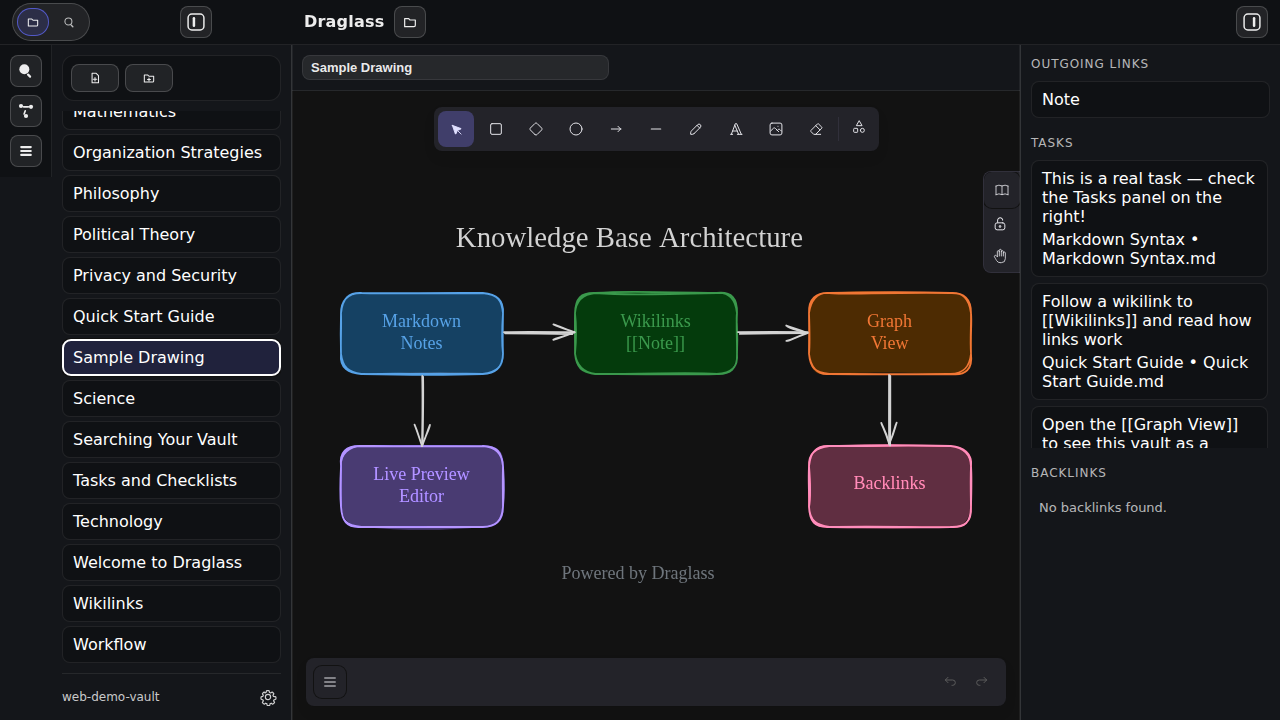
Features shown:
- Excalidraw canvas with demo drawing
- Shapes toolbox for sketching
- Canvas embedded inside the Draglass layout
- Note title showing the drawing file
Interface Components
Left Sidebar - Files View
- Tree view of all notes organized alphabetically
- Quick access to 28 demo notes
- New note and new folder buttons in toolbar
- Vault path indicator at bottom
- Settings button for configuration
Left Sidebar - Search View
See the Search View screenshot above for full details.
- Full-text search across vault
- Case-sensitive toggle
- Results with snippets and line numbers
- Click-to-jump navigation
Right Sidebar Panels
Outgoing Links:
- All wikilinks in the current note
- 18 outgoing links shown in Welcome note
- Click any link to navigate
Tasks:
- 13 open tasks from various notes
- Source note name and path for each task
- Click to jump to exact line
Backlinks:
- 8 notes linking to Welcome note
- Automatic discovery of connections
- Updates as you type
Top Bar
- Draglass logo and branding
- Vault selector button (folder icon)
- Sidebar toggle buttons
- Clean, minimal design
Toolbox
- Quick Switcher (magnifying glass)
- Graph View (network icon)
- Command Palette (command icon)
- Vertical layout on left side
Dark Theme
All screenshots show Draglass in Dark mode, which features:
- Dark background with light text for reduced eye strain
- Syntax highlighting in editor
- Themed Graph View with appropriate node/edge colors
- Consistent dark palette across all UI elements
Light mode is also available and can be toggled in Settings. The theme applies to:
- Editor interface
- Graph View visualization
- Mermaid diagrams
- All panels and dialogs
Live Preview Features
While not fully captured in static screenshots, Live Preview mode provides:
- Inline rendering: Formatting appears as you type
- Hidden markup: Bold, italic, and link syntax hidden until cursor enters
- Strikethrough rendering:
~~text~~is rendered inline - Clickable wikilinks: Click to navigate without leaving edit mode
- Properties panel: Obsidian-style frontmatter editor above the note
- Rendered diagrams: Mermaid flowcharts displayed inline
- Excalidraw drawings: Sketch-style diagrams rendered in place
- Callout blocks: Styled notes, tips, and warnings with icons
- Image lightbox: Click thumbnails for full-size view
- Task checkboxes: Click to toggle between open/done/cancelled
- Task done date automation: marking done adds
✅ YYYY-MM-DD
Additional Features Not Shown
These features are available but not captured in the current screenshots:
Global Search
- Full-text search interface accessed via Cmd/Ctrl + Shift + F
- Opens in the main editor area (different from left sidebar search)
- Search across all note contents
- Results with context snippets
- Line numbers for precision
- Case-sensitive option
Locked Sections
- Password-protected content
- Inline lock indicators in editor
- Excluded from search and tasks when locked
- Secure key derivation
File Operations
- Rename notes inline (click title)
- Delete with confirmation
- Create folders
- Expandable folder tree
Try It Yourself
The best way to experience Draglass is to run it yourself:
- Follow the Getting Started guide to install
- Run the web version to see the Demo Vault
- Experiment with features interactively
- Build the desktop app for full file system access
More Information
- Full Features List - Detailed feature descriptions
- Getting Started - Installation and setup
- Home - Project overview and quick links
| ← Back to Home | Download → |