Features
Draglass is packed with features designed for connected thinking, privacy, and powerful note-taking.
📝 Notes and Editor
Markdown Notes
All notes are stored as plain .md files in your vault folder. You maintain complete control over your data—no proprietary formats, no lock-in.
CodeMirror 6 Editor
Powered by CodeMirror 6, one of the most advanced code editors available. Fast, extensible, and built for modern web applications.
Live Preview Mode
Format as you type with inline rendering:
- Hidden markup: Bold, italic, and wikilink syntax disappears, showing only the formatted result
- Strikethrough rendering:
~~text~~displays as inline strikethrough in Live Preview - Cursor-aware reveal: Move your cursor into formatted text to see and edit the raw Markdown
- Clickable elements: Task checkboxes, wikilinks, tags, and images are all interactive
- Real-time rendering: Mermaid diagrams, callouts, and images render inline
Properties (Frontmatter)
Manage note metadata with an Obsidian-style Properties panel that edits YAML frontmatter.
Features:
- Inline property list with type icons and quick editing
- Collapsible panel to keep the editor focused
- Supported types: Text, Checkbox, Date, Date & Time, Number
- “Add property” flow for new metadata fields
Source Mode
Toggle to raw Markdown view when you need full control over syntax, formatting characters, and document structure.
Autosave
Never lose your work. Configurable debounced autosave with visual indicators:
- 🟢 Green dot: Saved
- 🔵 Pulsing: Saving in progress
- 🔴 Red dot: Error (check file system)
Force immediate save anytime with Cmd/Ctrl + S.
🔗 Linking and Navigation
Wikilinks
Connect notes using [[Note Name]] syntax. Create bidirectional connections that mirror how you think.
Features:
- Case-insensitive matching
- Optional display aliases:
[[Note Name|shown text]] - Click to open (or create if it doesn’t exist)
- Automatic link resolution across your vault
Backlinks
Every note automatically tracks which other notes link to it. The Backlinks panel shows:
- All incoming links from across your vault
- Live updates as you type new links
- Click-to-jump navigation
- Excluded from view when vault is locked
Tags
Use hashtags such as #project or nested tags like #project/draglass directly in note text.
Features:
- Case-insensitive matching with normalized storage
- Click any rendered tag in Live Preview to open the Tags explorer
- Dedicated Tags tab in the right sidebar with filter + note list
- Respects hidden/ignored paths and locked-section visibility
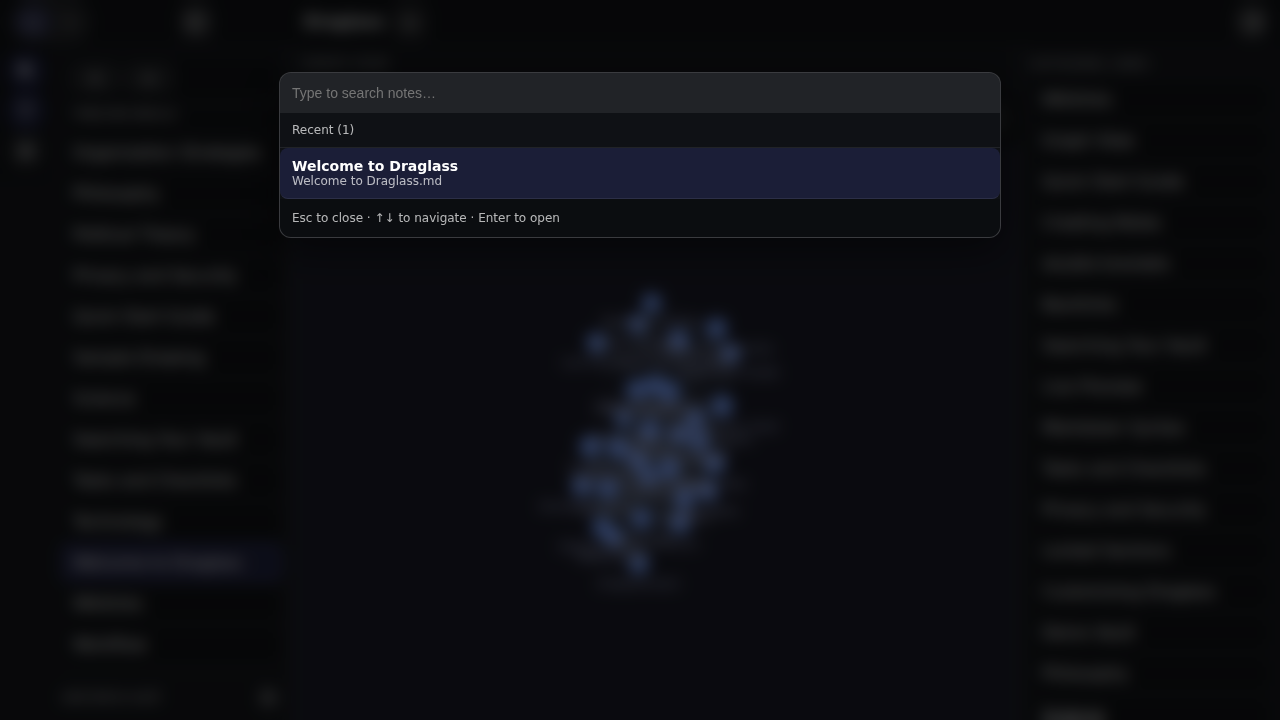
Quick Switcher (Cmd/Ctrl + P)
Fuzzy search across all note titles. Features:
- Instant results as you type
- Fuzzy matching: “crit” matches “Critical Thinking”
- Recent notes: Quick access to your last 20 opened notes
- Keyboard navigation: Arrow keys to select, Enter to open
Command Palette (Cmd/Ctrl + Shift + P)
Searchable list of all app commands:
- New Note
- Insert Template…
- New Note from Template…
- Rename Current Note
- Delete Current Note
- Lock Current Heading
- Reveal/Hide Private Sections
- Change Vault Password
- Open Demo Vault
Global Search (Cmd/Ctrl + Shift + F)
Full-text search across your entire vault:
- Search in file contents, not just titles
- Results grouped by file with snippets and line numbers
- Case-sensitive toggle
- Click any result to jump to that line
- Respects locked sections (excluded when vault is locked)
- Excludes template files under the configured templates folder
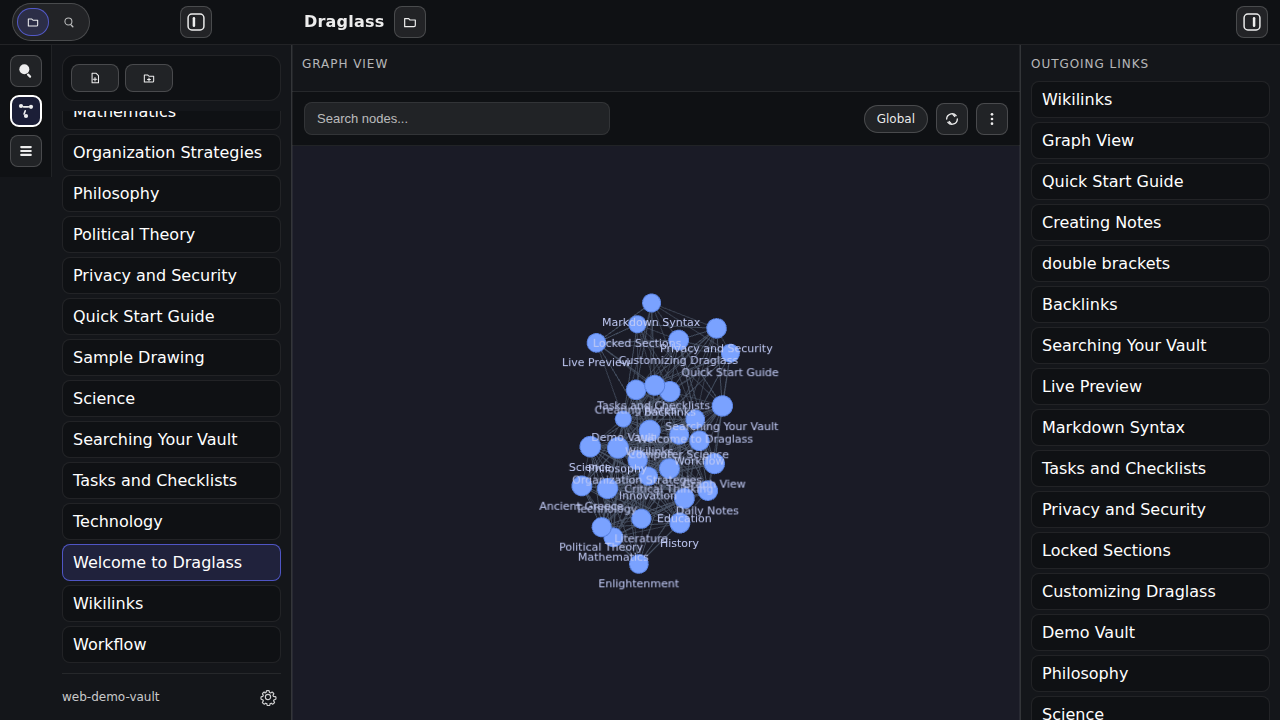
🕸️ Graph View
Visualize your vault as an interactive force-directed network diagram. Every note is a node, every wikilink is an edge.
Global and Local Modes
- Global: See your entire vault at once—all notes, all connections
- Local: Focus on the current note and its neighbors within N hops (1-5 configurable)
Interactive Controls
- Click a node to open that note
- Right-click for context menu (Open note, Copy path)
- Drag to pan around
- Scroll to zoom in and out
- Search to highlight matching nodes
Customization
Full control over graph appearance and physics:
Forces:
- Center strength (how nodes are pulled to center)
- Repel strength (how nodes push apart)
- Link strength (rigidity of connections)
- Link distance (target spacing)
Display:
- Show directional arrows
- Text fade threshold
- Node size
- Link thickness
Filters:
- Search query to show only matching nodes
- Show/hide orphan notes (notes with no links)
Color Groups: Add custom color groups with queries to visually distinguish topic areas (e.g., all notes matching “Philosophy” in blue).
Theme-Aware
Automatically adapts to your chosen dark/light theme.
✅ Organization and Productivity
Tasks and Checklists
Write tasks anywhere using standard Markdown checkboxes:
- [ ] Open task
- [x] Completed task
- [-] Cancelled task
The Tasks panel in the right sidebar automatically collects all open tasks from every note in your vault. Click any task to jump directly to its line in the source note.
Features:
- Vault-wide scanning: See all open tasks in one place
- Clickable checkboxes in Live Preview mode (cycle through open → done → cancelled)
- Automatic done date: Checking a task as done appends
✅ YYYY-MM-DDwhen missing - Task field menu: Right-click a checkbox in Live Preview to add emoji task fields (dates, priority, recurrence)
- Task query due dates: Fenced
tasksquery blocks show a Due column when tasks include📅 YYYY-MM-DD - Smart filtering: Completed and cancelled tasks hidden from panel
- Debounced scanning: No performance impact on typing
- Respects privacy: Tasks in locked sections excluded when vault is locked
Daily Notes
Create time-stamped entry points for:
- Daily tasks and to-dos
- Meeting notes
- Ideas and observations
- Journal entries
Daily notes link outward to your permanent notes, creating a timeline view via backlinks.
Folders
Organize notes hierarchically:
- Create folders from the toolbar
- Nested folder support
- Expandable/collapsible tree
- Remembers expanded state across sessions
File Management
- Rename: Click the note title or use Command Palette
- Delete: Via Command Palette with confirmation dialog
- New note/folder: Toolbar buttons or Command Palette
Templates v1
Use reusable Markdown templates stored under a configurable templates folder (default: _templates).
Features:
- Insert Template…: Inserts template content into the current note at selection/cursor
- New Note from Template…: Creates a new note from the selected template
- Action-time variables:
,,,, `` - Create-time expression evaluation:
<% tp.date.now("...") %>andmoment(tp.file.title, ...).format(...)resolve when creating notes - Frontmatter-aware apply: Template frontmatter merges into existing notes without overwriting existing keys
- Search-safe: Template files are excluded from indexing and search results
🔐 Privacy and Security
Local-First Design
- All notes stored locally in a folder you choose
- Settings in browser localStorage (or Tauri local storage)
- No network calls, no cloud sync, no telemetry
- Works completely offline
- New notes automatically get
createdandupdatedfrontmatter timestamps updatedis refreshed on save for notes that already contain frontmatter
Locked Sections
Protect sensitive content within notes by marking headings as locked:
## Private thoughts {locked}

This content is hidden until you unlock the vault.
Features:
- Heading-level granularity: Lock individual sections, not entire notes
- Nested protection: Sub-headings inherit lock status
- Vault-wide password: One password protects all locked sections
- Secure key derivation: Password hash using Rust-based KDF (never stored in plain text)
- Content exclusion: Locked content hidden from backlinks, tasks, and search results
Commands:
- Lock Current Heading: Add
{locked}marker to current section - Reveal Private Sections: Enter password to unlock
- Hide Private Sections: Re-lock without restarting
- Change Vault Password: Update password (requires current password)
Hidden Files
Automatically filters out:
- Dotfiles (
.git,.obsidian, etc.) node_modules.DS_Store
Toggle visibility in Settings if needed.
🎨 Rich Content
Mermaid Diagrams
Render flowcharts, sequence diagrams, and more inline:
```mermaid
flowchart LR
    A[Start] --> B[Process]
    B --> C[End]
```
Features:
- Vector rendering (crisp at any zoom level)
- Theme-aware (follows dark/light theme)
- Toggle rendering on/off in Settings
Excalidraw Drawings
Embed hand-drawn style diagrams directly in your notes or open standalone drawing files:
```excalidraw
{ "type": "excalidraw", "version": 2, "elements": [] }
```
Features:
- Live Preview renders Excalidraw blocks as SVG
- Supports
.excalidrawand.excalidraw.mdfiles (including Obsidian Excalidraw format) - Theme-aware rendering (dark/light)
- Demo Vault includes sample drawings to explore
Callout Blocks
Styled blockquotes for notes, tips, warnings, and more:
> [!note] Note Title
> This is a callout with an icon and color.

> [!warning] Warning Title
> Important information stands out.
Supported types: note, tip, warning, info, abstract, question, success, failure, and more.
Images
Standard Markdown image syntax with enhanced features:

- Inline thumbnails in Live Preview
- Click-to-enlarge lightbox for full-size viewing
- Alt text captions in lightbox
- Wikilink embeds:
![[image.png]]syntax
Tables, Lists, Code Blocks
Full Markdown support including:
- Tables with alignment
- Ordered and unordered lists
- Nested lists
- Fenced code blocks with syntax highlighting
- Inline code
- Horizontal rules
⚙️ Customization
Themes
- Dark mode: Default theme with easy-on-the-eyes colors
- Light mode: Clean, bright alternative
Theme applies to:
- Editor interface
- Graph View
- Mermaid diagrams
- All UI elements
Layout
Sidebars:
- Left: Files and Search tabs
- Right: Outgoing links, Tasks, Backlinks
- Resizable by dragging dividers
- Toggle visibility:
Cmd/Ctrl + B: Left sidebarCmd/Ctrl + Shift + B: Right sidebarCmd/Ctrl + Alt + B: Both sidebars (distraction-free mode)
- Sizes and states remembered across sessions
Settings
Comprehensive configuration panel (gear icon in left sidebar):
Editor:
- Soft wrap
- Render diagrams
- Render images
- Render callouts
- Theme selection
Files:
- Remember last vault on startup
- Show hidden/ignored paths
- Remember expanded folders
Autosave:
- Enable/disable autosave
- Debounce delay (ms)
Backlinks:
- Enable/disable scanning
- Debounce delay (ms)
Quick Switcher:
- Debounce (ms)
- Max results
- Max recent notes
Templates:
- Templates folder path (vault-relative, default
_templates) - Create templates folder action
Reset: Restore all settings to factory defaults
Demo Vault
Built-in interactive guide that:
- Opens automatically on first launch
- Demonstrates every feature with real examples
- Always accessible via Command Palette
- Safe to edit and experiment with
- Includes tag-specific sample notes: Tags and Tag Explorer
🖥️ Platform Support
Desktop Application
Native desktop app built with Tauri:
- Windows, macOS, Linux support
- Native file system access
- Small memory footprint
- Fast startup time
- No Electron overhead
Web Version
Run Draglass in any modern browser:
- In-memory vault with localStorage persistence
- Perfect for demonstrations
- No installation required
- Full feature parity with desktop (except file system access)
🚀 Performance
- Fast startup: Tauri’s Rust backend launches in milliseconds
- Efficient rendering: CodeMirror 6’s viewport-based rendering
- Debounced operations: Autosave, backlinks, and task scanning won’t slow you down
- Incremental updates: Only changed content re-renders
- Lazy loading: Large vaults load efficiently
Next Steps
- Getting Started - Install and configure Draglass
- Screenshots - Visual tour of all features
- Download - Get Draglass for your platform
| ← Back to Home | Getting Started → |